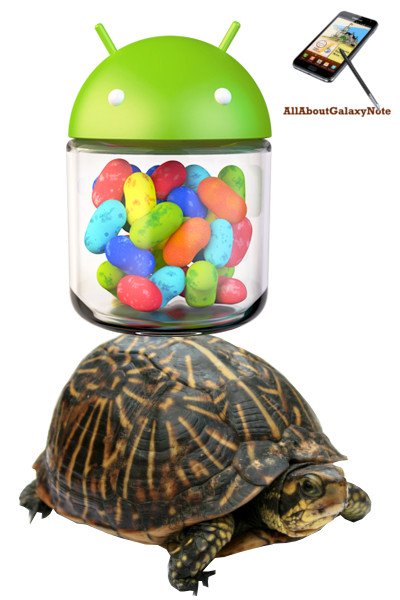
 Jelly Bean 4.1 updated for Galaxy Note has been rolled out in phases since February 2013. This update brings Galaxy Note owners many excited improvements, new features and apps. Some of the new features were explained in the Top 12 new features you should try after getting Jelly Bean 4.1 update for Galaxy Note.
However, some users reported serious slowness issues after the Jelly Bean update in their Galaxy Notes. It seems the Project Butter is nothing, or Samsung stole our butter.
What are the causes, and what are the solutions?
First, Galaxy Note is powerful enough for running Jelly Bean smoothly. 1GB RAM, and dual core 1.4GHz Exynos 4 Dual 4210 chip are still decent hardware specifications even after1.5 years. A lot of middle range Jelly Bean handsets has far less powerful hardware specifications.
So, do not suspect your hardware. Jelly Bean is not hungry for hardware. Any hardware that can run Ice Cream Sandwich should meet the requirements of Jelly Bean. A lot of manufactures do not give Jelly Bean update simply because they do not want to put more resources on an old model. In this sense, Samsung did an excellent job.
The slowness problem in Jelly Bean update lies on the update itself. When you update the system, most of your old settings will be kept, some are necessary, some are unnecessary . Some of these settings are fully compatible with Jelly bean; some are compatible but with degraded performance. For the known incompatible settings, the update will handle them. The biggest issue is that some old settings are not compatible to the new OS/ROM, but it is unknown yet. Therefore, for the slowness caused by such problematic settings, a factory reset will solve the issue.
Please be careful when performing the factory reset because it will erase your internal storage. You need backup all your data in the internal storage, including your contacts and messages. Apps can be re-installed, but the settings will be gone. If you have rooted your phone, you can use Titanium Backup to … Read the full post
 This is our second S Note video tutorial. In this tutorial,we will learn how to change the appearance or typesetting of your text in S Note. This includes font type, text size, text decoration, paragraph spacing, paragraph alignment, paragraph indent, pre-defined styles, and list styles.
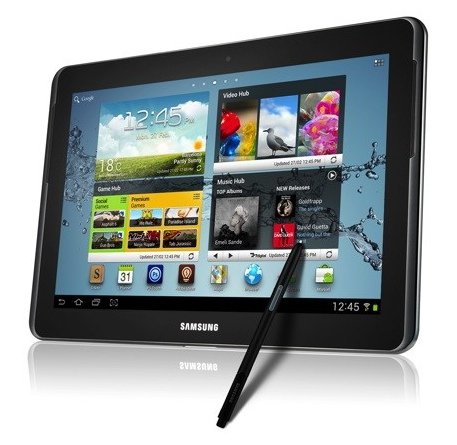
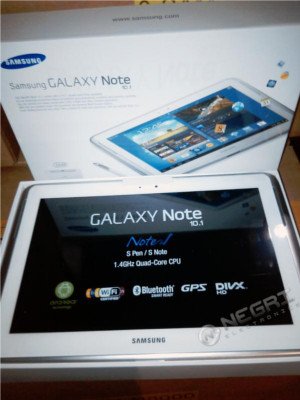 So, Samsung decided to re-work it. Now after more than 5 months, pre-order of this tablet was announced by
  Pop up play was debuted on Galaxy S3 last May. In the Googl Play store, there are a few paid apps (e.g., Stick it! (Pop-up Player)) doing the similar job. What it does is quite simple, you can watch your video and use other apps at the same time. The video will be re-sized as thumbnail and you can move it to any locations on your screen. Pretty cool, right?
 Update: although the post was initially written for Galaxy Note with ICS, the method actually works for Galaxy Note 2, Galaxy Note 3 and many other Android devices with different versions of Android.
 Why does Samsung (and all other licensed Android hardware manufactures) have to release the source code to the public? This is simply the obligation of using Android, because Android is using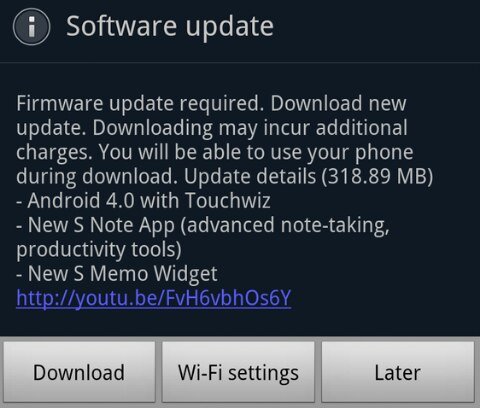
 CyanogenMod
 Yes, about
  Samsung just
  In February, we reported that
 For those who
 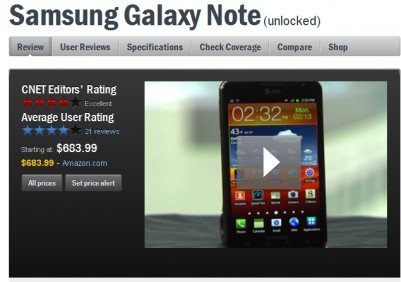 Galaxy Note got a quite good review on performance, phone quality, 4G LTE connectivity, 5.3″ display, and the camera. The editor’s major concerns are: 1). the S pen is too small and 2). the size of this device may be awkwardly large for some people to fit into pocket.
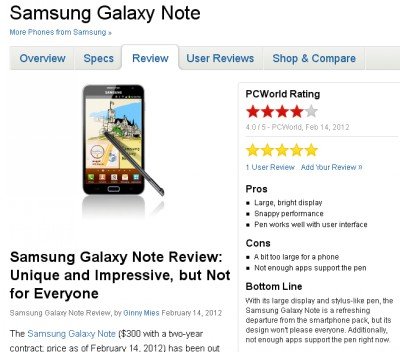 The review is quite positive. The reviewer dived into some aspects that other reviewers overlooked, e.g., Samsung’s TouchWiz UI, S Memo. The reviewer’s major concern is the lack of apps for S Pen. Spot on. The conclusion is unique and impressive, but not for everyone.